React I
By: Hudson McGough
What is React?
React is one of the most popular tools for building modern websites and web applications. It is a JavaScript library used to create interactive user interfaces that update in real time as data changes. Instead of manually updating the page when new information arrives, React automatically re-renders only the parts of the website that need to change. This makes it especially powerful for applications that work with live or frequently changing data.
React is declarative and component-based. This means you build your website using small, reusable components (such as charts, tables, or filters), and React handles how those components update on the screen. This approach improves development speed, code readability, and long-term maintainability.
For data journalism and analytics, learning React allows you to create dynamic and interactive experiences.
1. Getting Started
Open your code editor and follow along as you read. Experimenting in real time will help reinforce these concepts.
1.1 Setting Up Your Project
Node.js
React runs on top of Node.js, which lets you install libraries and run projects locally on your own computer. If you do not have Node.js installed, you can download it from the Node.js website by following the instructions for your operating system.
Creating a React App
There are multiple ways to create a React app. For this documentation, we will use Vite, a modern build tool with very fast startup times compared to most alternatives.
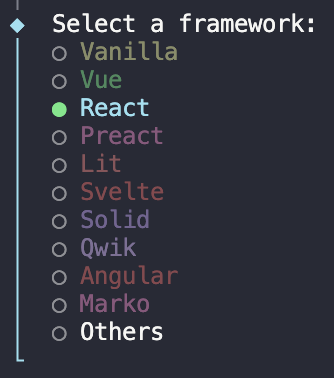
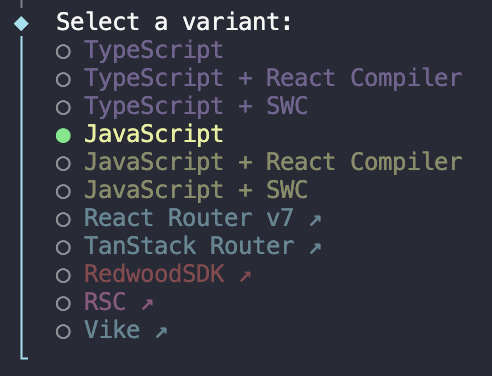
When prompted, choose React and then JavaScript.
Then run:
1.2 Project Structure
After setup, your folder structure should look like this:
Here is an overview of each file and folder:
vite.config.js — Configuration file for Vite. Controls plugins and server behavior. You can ignore it for most simple projects.
package.json — Describes your project and its dependencies (like React), and includes scripts such as npm run dev.
node_modules/ — Contains all installed dependencies. Automatically generated when you run npm install. You should never edit this folder directly.
public/ — Stores static assets like images or icons that do not need to be processed by React.
src/ — The most important folder — it contains all of your React code.
Inside src/:
main.jsx — The entry point of your application. It renders the root React component (App) into the browser's DOM. You will rarely need to edit this file.
App.jsx — The main component and container for your app. As you build your site, you will import other components (like Menu.jsx) here. It is also good practice to keep all reusable components in a separate src/components/ folder.
index.css — Global styles for your site.
1.3 Running Your Application
Open the URL shown in your terminal (usually http://localhost:5173). Notice that if you edit App.jsx and save, those changes are immediately reflected in the browser via hot reload — no manual refresh needed.
2. Core Concepts
2.1 JSX (JavaScript XML)
JSX is a syntax that lets you write HTML-like code directly inside JavaScript. Think of it as a combination of JavaScript and HTML. You can use standard HTML-like tags (<h1>, <div>) and embed JavaScript expressions using curly braces {}.
Example:
The curly braces tell React to evaluate the JavaScript expression inside them — in this case, inserting the value of name into the rendered heading.
2.2 Components
Components are reusable pieces of UI. You can think of a component as a function that takes in some inputs and returns the UI that should be displayed. Components let you break your app into smaller, independently developed pieces that can be reused throughout your project.
Example:
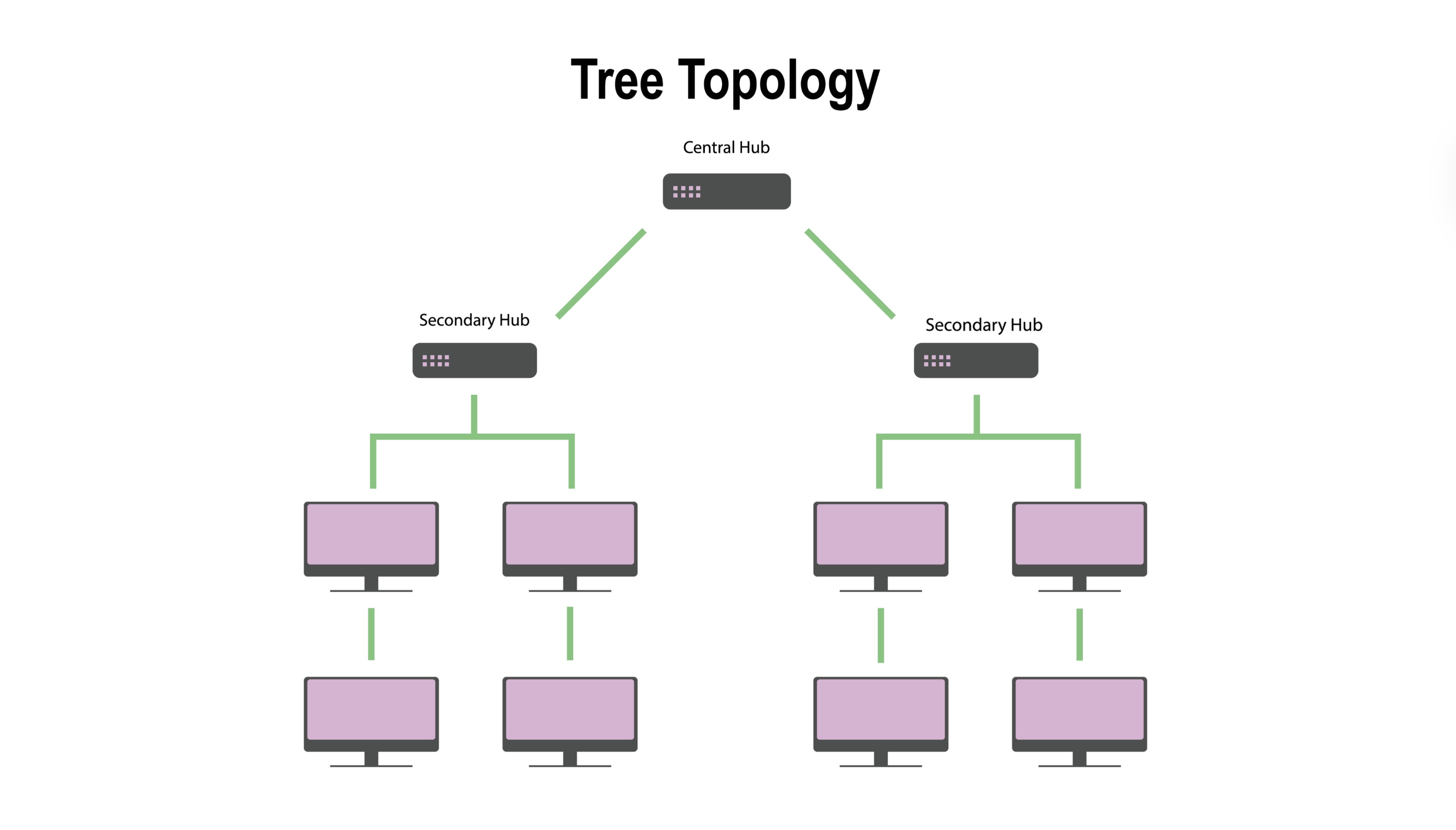
React applications form a tree structure: App.jsx is the root node, and components like <Header />, <Dashboard />, and <Footer /> branch out beneath it as child nodes. This mirrors how the browser's DOM (Document Object Model) is structured.
Components:
- Receive an object of inputs called props
- Return JSX
Importing & Exporting Components
As projects grow, storing all components in one file becomes difficult to manage. To keep your code organized, it is common practice to export each component into its own file and import it wherever it is needed.
2.3 Props
Props (short for properties) are how you pass data from one component to another. They work like arguments to a function — the props you pass in will determine what gets rendered.
Example:
note
Props are read-only. A component should never modify its own props directly. To manage data that changes over time, use state (covered in Section 3).
2.4 Rendering Lists
When working with arrays of data (such as results from an API), you will often need to render a list of components. React uses JavaScript's .map() method to transform an array of values into an array of UI elements.
Example:
note
Each item in the list must include a unique key prop. This helps React track which items changed, were added, or were removed, making re-renders more efficient.
Other common array methods you will use in React:
map()— creates a new array by transforming each elementfilter()— creates a new array with only elements that pass a conditionreduce()— processes all elements and returns a single value
You can learn more about these in the learn2code guide on array methods.
2.5 Conditional Rendering
Sometimes parts of your UI should only appear under certain conditions — like a loading message or an empty state. React lets you use standard JavaScript logic inside JSX to decide what to render.
Logical AND (&&)
Shows something only when a condition is true:
Ternary Operator
A shorthand if-else that chooses between two possible UI states:
3. State, Events, & Hooks
React apps are interactive. Users click buttons, type into inputs, select dropdowns, and more. To support this, React uses state and events.
3.1 State
Understanding State
While props pass data down from a parent, state manages data that changes within a component over time. If you want your UI to react to user actions — like typing in a search bar, clicking a filter button, or opening a dropdown — you need state.
When a component's state changes, React automatically re-renders that component to reflect the new data.
Using useState
To add state to a functional component, use the built-in React hook useState. It gives you two things:
- The current value of the state
- A function to update that value
Here is a simple interactive counter:
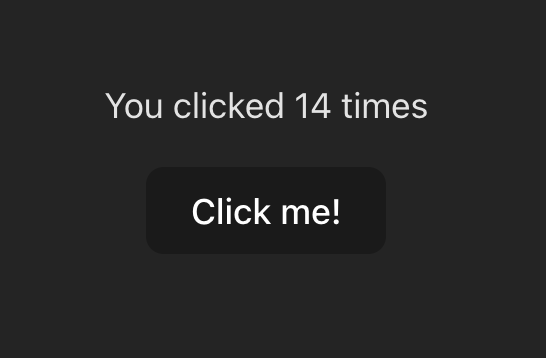
Every time the button is clicked, setCount updates the state, and React re-renders the component to display the new count.
3.2 Handling Events
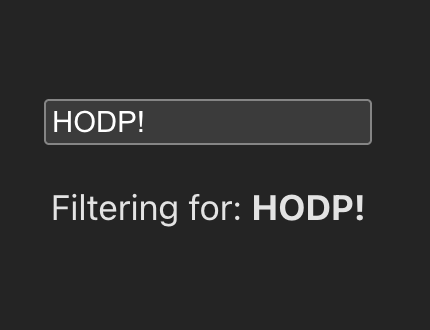
React handles user interactions using event attributes like onClick (for buttons) and onChange (for text inputs). Here is an example of a search filter — something you will use frequently when building data dashboards:
4. Fetching Data & useEffect
Real-world analytics relies on live data. To get that data into your app, you need to fetch it from an external API (Application Programming Interface) or database.
4.1 What Is a Side Effect?
In React, a component's job is to take in data (props and state) and return UI (JSX). Anything that reaches outside of this predictable process is called a side effect. This includes:
- Fetching data from an API
- Setting up subscriptions
- Changing the browser tab's title
4.2 Using useEffect
To handle side effects safely without interrupting UI rendering, React provides the useEffect hook. It tells React: "Render the UI for the user first. Once that's done, run this extra piece of code."
useEffect takes two arguments:
- The setup function — the code you want to run (like a
fetch()request) - The dependency array — a list of variables that controls when the effect should re-run
Dependency Array Rules
- No array → runs after every render (dangerous for data fetching — will spam the API)
- Empty array
[]→ runs once when the component first loads (best for initial data fetches) [variable]→ runs on first load and again whenever that variable changes
4.3 Full Fetch Example
Good data fetching UI accounts for three states: the data itself, a loading state, and a possible error. Here is a complete, safe example:
5. Working with Data
As a data journalist or analyst, your main goal is taking raw data and making it digestible. In React, this usually starts with arrays of objects — whether loaded from a CSV, a database, or a public API.
You can use the tools covered so far to:
- Render lists of data points
- Build tables from structured records
- Filter and search datasets in real time
- Feed data into charting libraries like D3
More on building charts will be covered in the D3 documentation.
6. Styling Components
In React, there are a few different ways to apply CSS to your components.
6.1 CSS Files
Write standard CSS in a separate file (like App.css) and import it into your component.
note
In JSX, use className instead of class to assign CSS classes. This is because class is a reserved keyword in JavaScript.
6.2 Inline Styles
You can apply styles directly to an element. In React, inline styles are written as JavaScript objects, not CSS strings.
6.3 Tailwind CSS
Writing CSS manually for every element can get time-consuming. Tailwind CSS is a utility-first framework that lets you style your components using descriptive class names directly in your JSX — no separate CSS files needed.
Helpful resources for getting started with Tailwind:
7. Forms & User Interaction
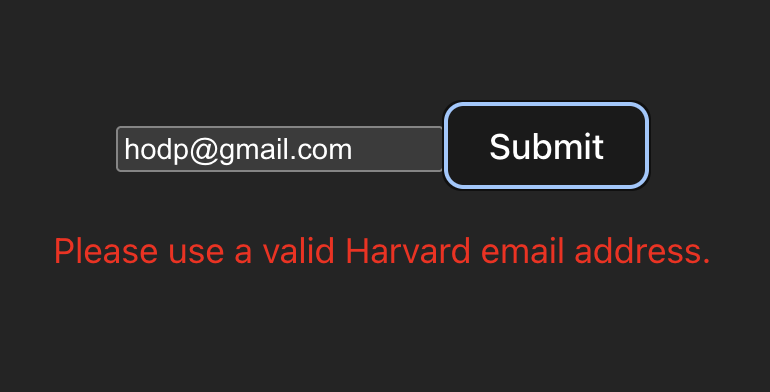
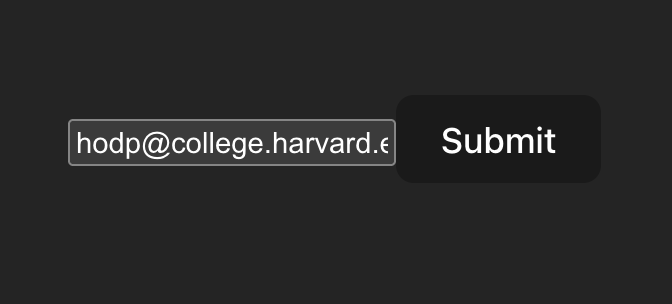
When you want users to submit data, configure settings, or apply filters, you need forms. In React, the standard approach is controlled components, where React state becomes the single source of truth for every input value. Every time the user types a character, it updates the state, and the state updates the input value.
This real-time control makes it easy to validate data before the user even hits submit.
Example: Email Validation
8. Project: Simple Dashboard
Now let's combine everything: state, effects, data fetching, filtering, and conditional rendering to build a mini interactive dashboard.
This project fetches a list of users (acting as our data points), includes a search filter, and displays the results in a table.
Paste the code below into your App.jsx, save the file, and watch your browser update live.
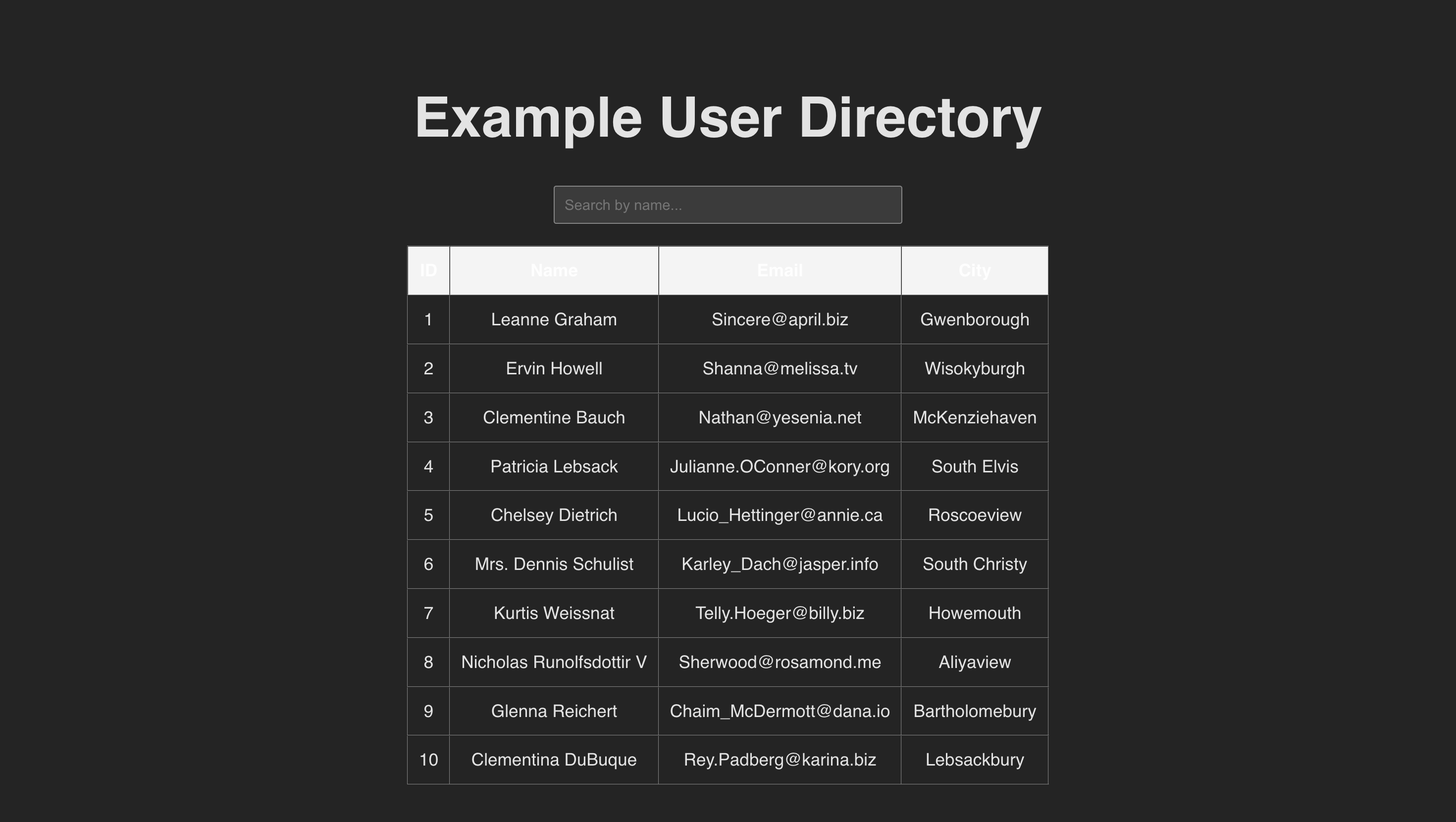
Try typing in the search bar to see the table filter instantly. This is the core interaction pattern behind most data dashboards built in React.